In this article, we describe the basics of sidelineSCORE, how to score a baseball or softball game, and how to access the scoring link so anyone at the field can score. Only one person should be scoring at one time.
SidelineSCORE is our easy-to-use, web-based Daktronics-style scoreboard controller and is the default scoreboard for sidelineHD. Any parent in the stands can control your scoreboard, identify who’s batting/pitching, and generate automatic highlight videos! Team Managers can also invite additional scorers (see below). More information about scoreboard control options is available here.
Scoreboard control basics:
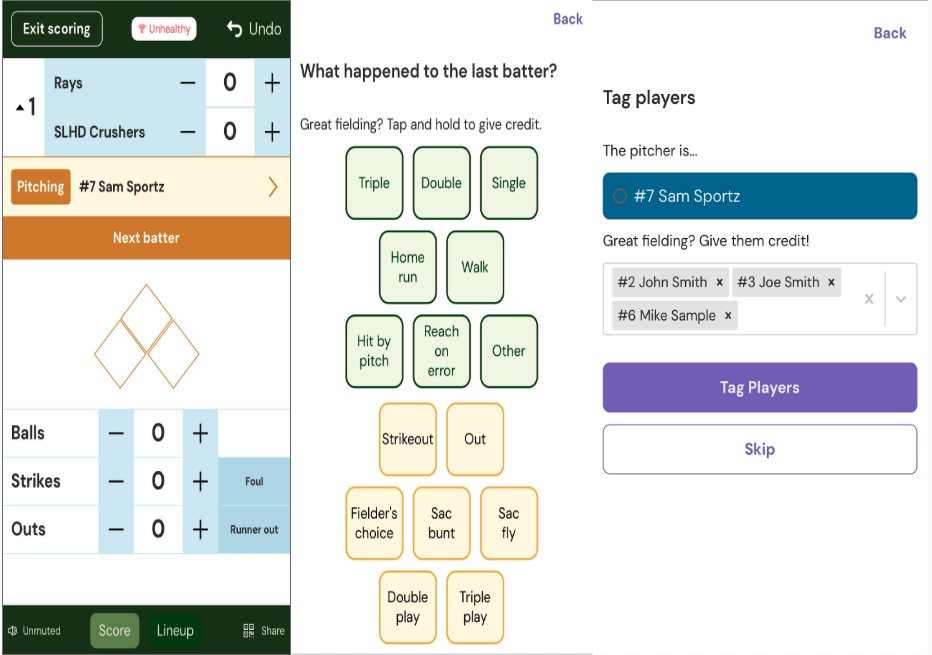
SidelineSCORE tracks your game's score, count, and baserunners. To help us generate player overlays and highlight videos, you will be asked to identify your batters and pitchers. You will also be asked for the outcome of each at-bat.
When your team is batting, sidelineSCORE tracks your batter and lineup. You can enter your lineup before your game starts, or you can enter each batter as they step onto the field.
When your team is on defense, sidelineSCORE tracks your pitcher and when an out is made, we ask if you want to tag any fielders. (We don't prompt you for the opposing team's lineup or jersey number.
Scoring a Baseball or Softball Game:
Login into your sidelineHD account
Select your Team Card.
Select the Game Card
If you haven't entered a lineup, you can do so now or start scoring the game without one and enter the lineup on the fly. Learn more aboutCreating a lineup here
Select Start Scoring
Once on the scoring controller.
Using the + an - buttons next to balls and strikes to increase the balls and strikes
Four balls automatically advance to the next batter, and highlight a base
Three strikes automatically advance to the next batter and add the out
After scoring the third out, we automatically switch to the top or bottom of the next inning.
In some situations, the bases will be highlighted automatically, but not always.
Bases do not clear on their own; you must tap them to set them as unoccupied.
Runs are scored manually by pressing the + button next to the team that scored.
The Undo button undoes that last action taken.
When the game is over, press the Exit Scoring button and select End Game.
Ending the game is final and cannot be undone. If you are unsure, press pause scoring.
Inviting Additional Scorers:
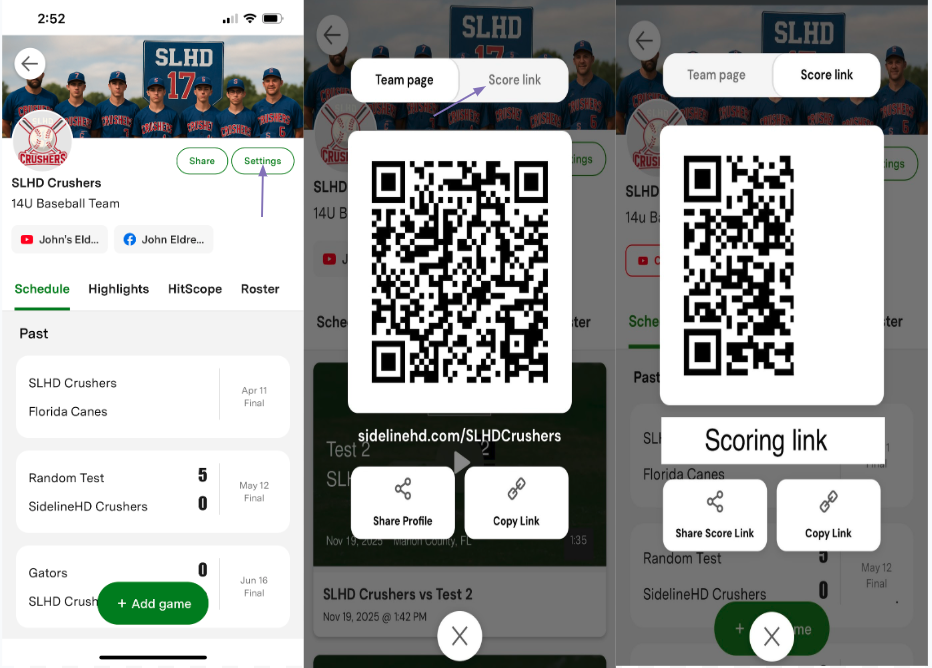
Team Managers can invite others to control the scoreboard. To invite an additional scorer, go to team page and select the share button tab, You will see a QR code for the team page, Select the Score Link and a QR Code along with a URL for the scoring link will be displayed that you can send by text message or email.
NOTE:
Your delegated scorer can score at any time by clicking on the invite URL. They don't need to have a sidelineHD login. Invitations do not expire. Delegated scorers can create, score, and delete your team's games so be careful who you share the URL with.
"There's Just Nothing Better"
More ways to level up
HELP CENTER
Find solutions to your streaming questions and get help from our expert customer care team.



.svg.png)