A simple step-by-step guide to get game-day ready
If you're gearing up to stream youth sports with sidelineHD, one of the best things you can do is run a quick test stream at home. This helps you make sure your team is set up correctly, your roster is loaded, your schedule is ready, and most importantly, that your camera can go live without issues.
Whether you're brand new or just want to double-check your setup, this guide walks you through everything needed to run a smooth test stream.
Now it’s time to create a “practice game” so you can fully simulate a real stream.
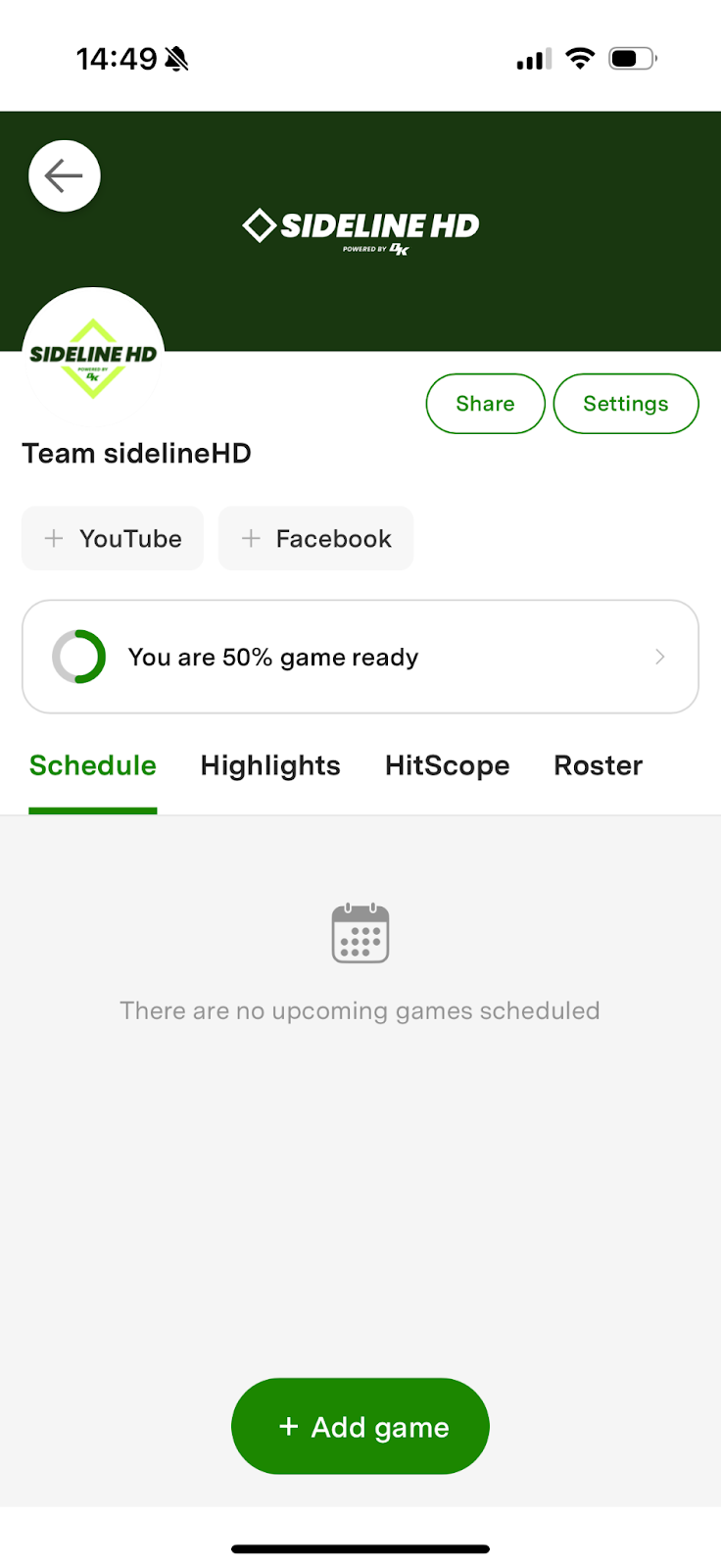
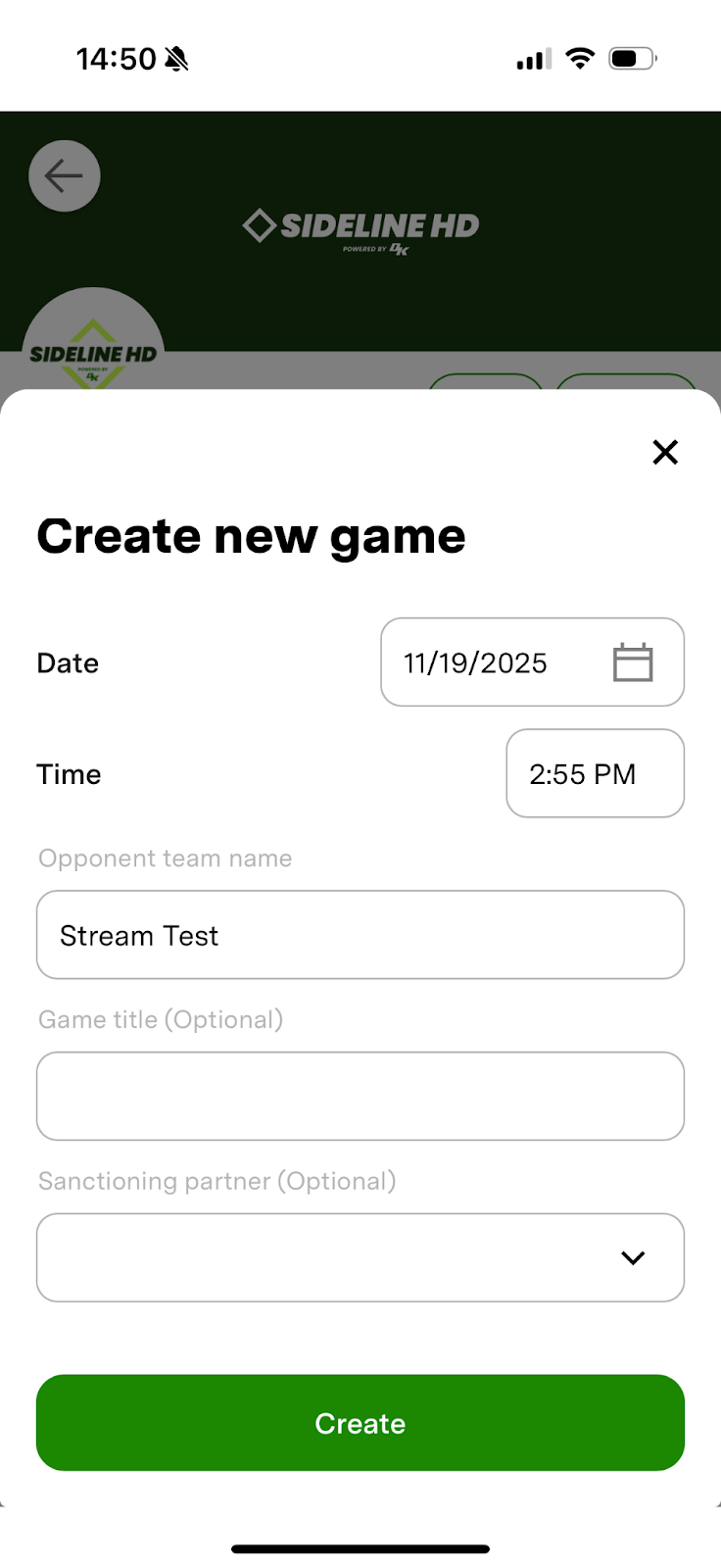
This creates a scoreboard page and a Live Event link, just like a real game.
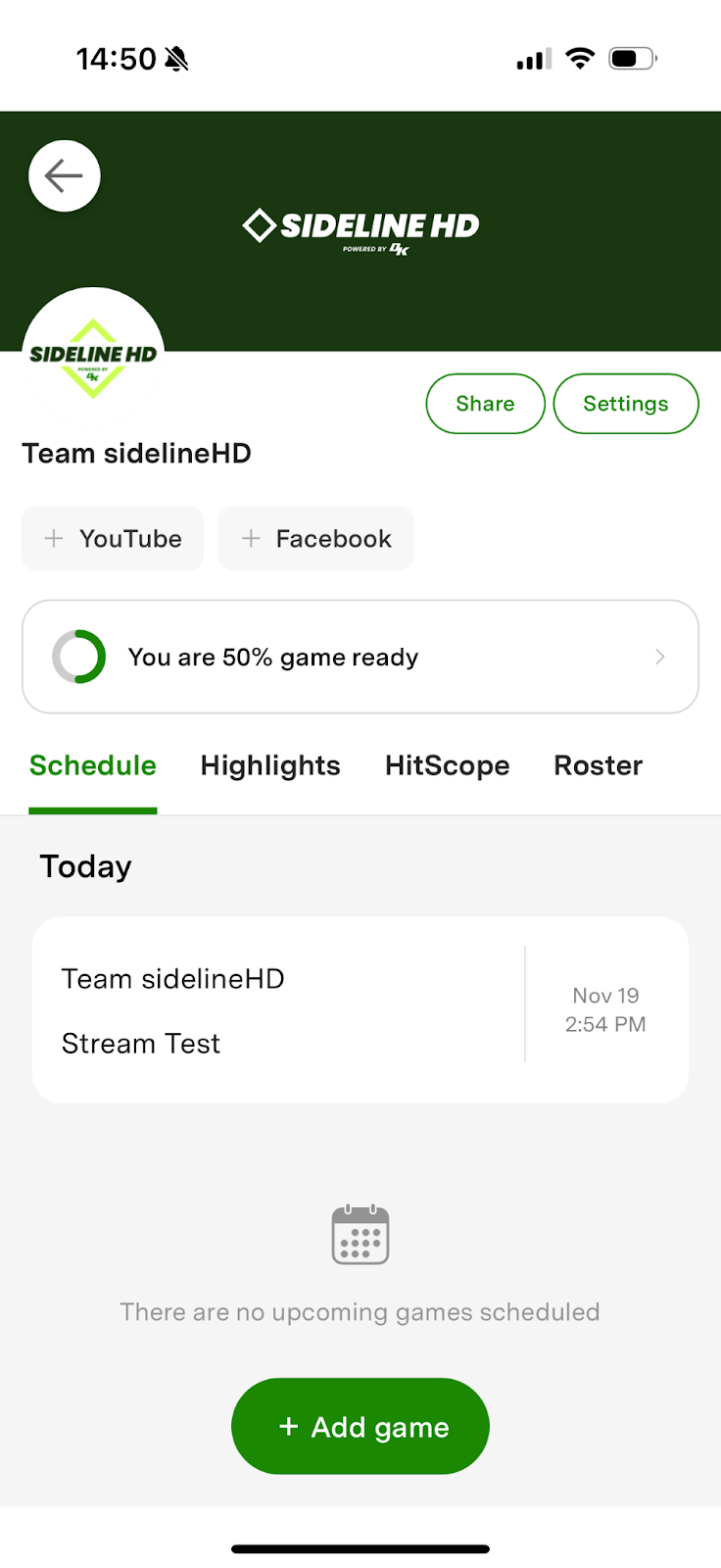
With your team, roster, and test game ready, you can now run the actual test.
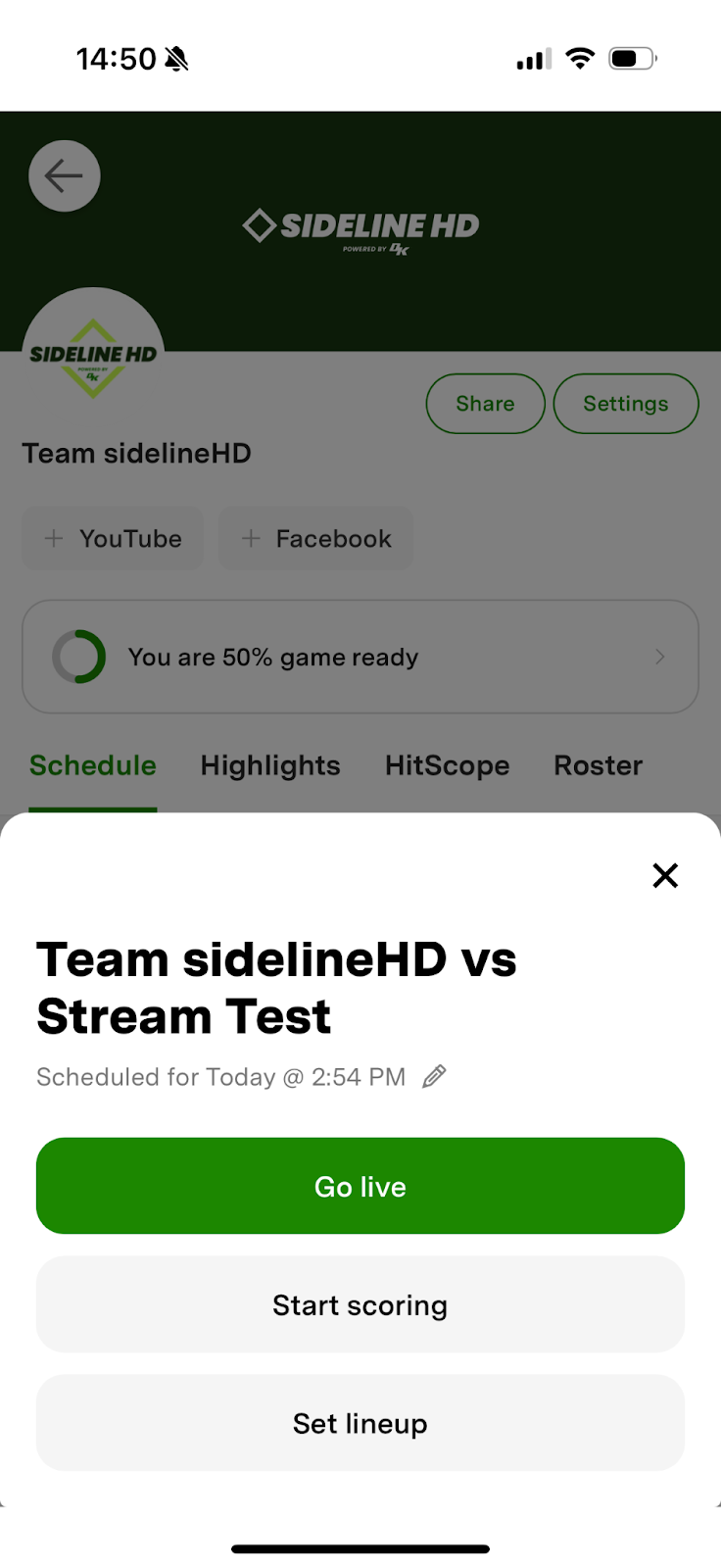
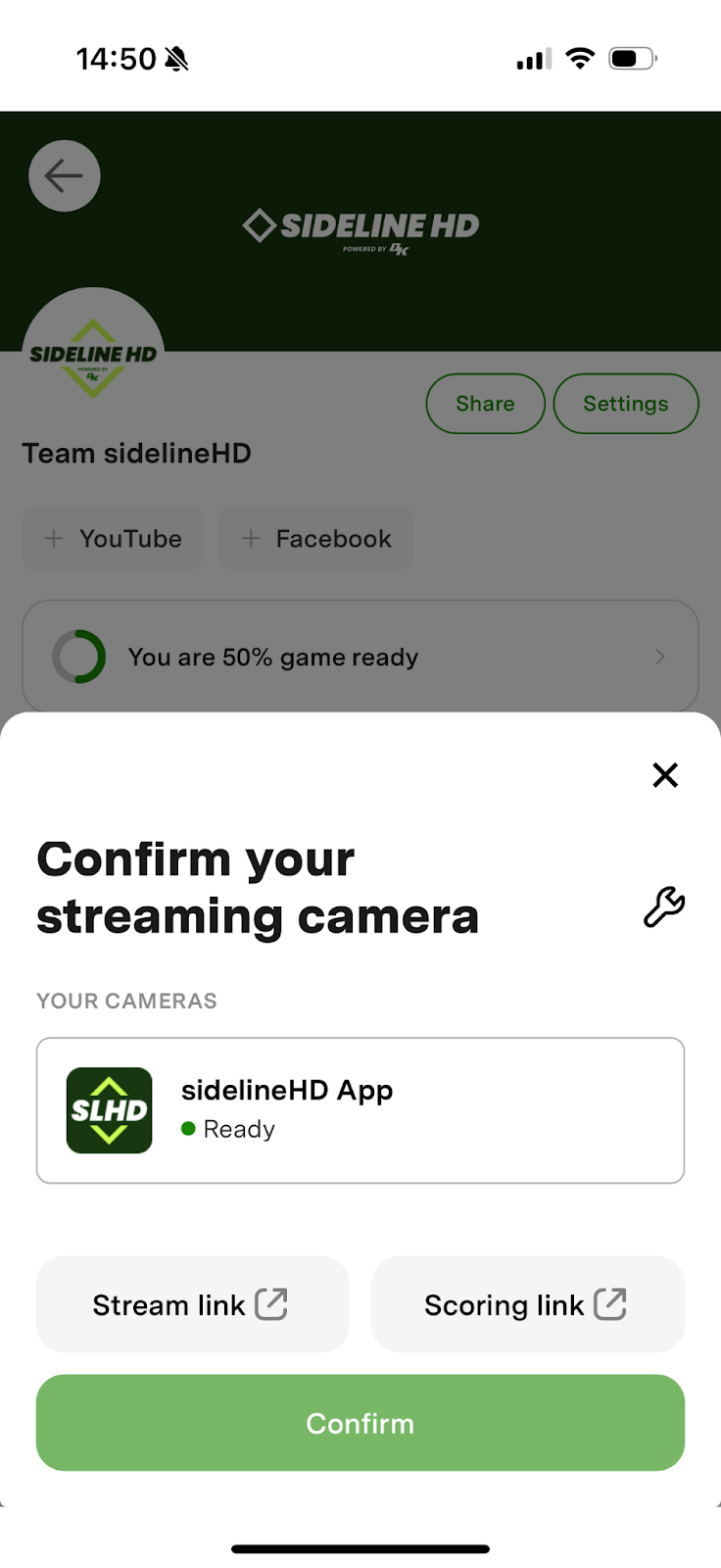
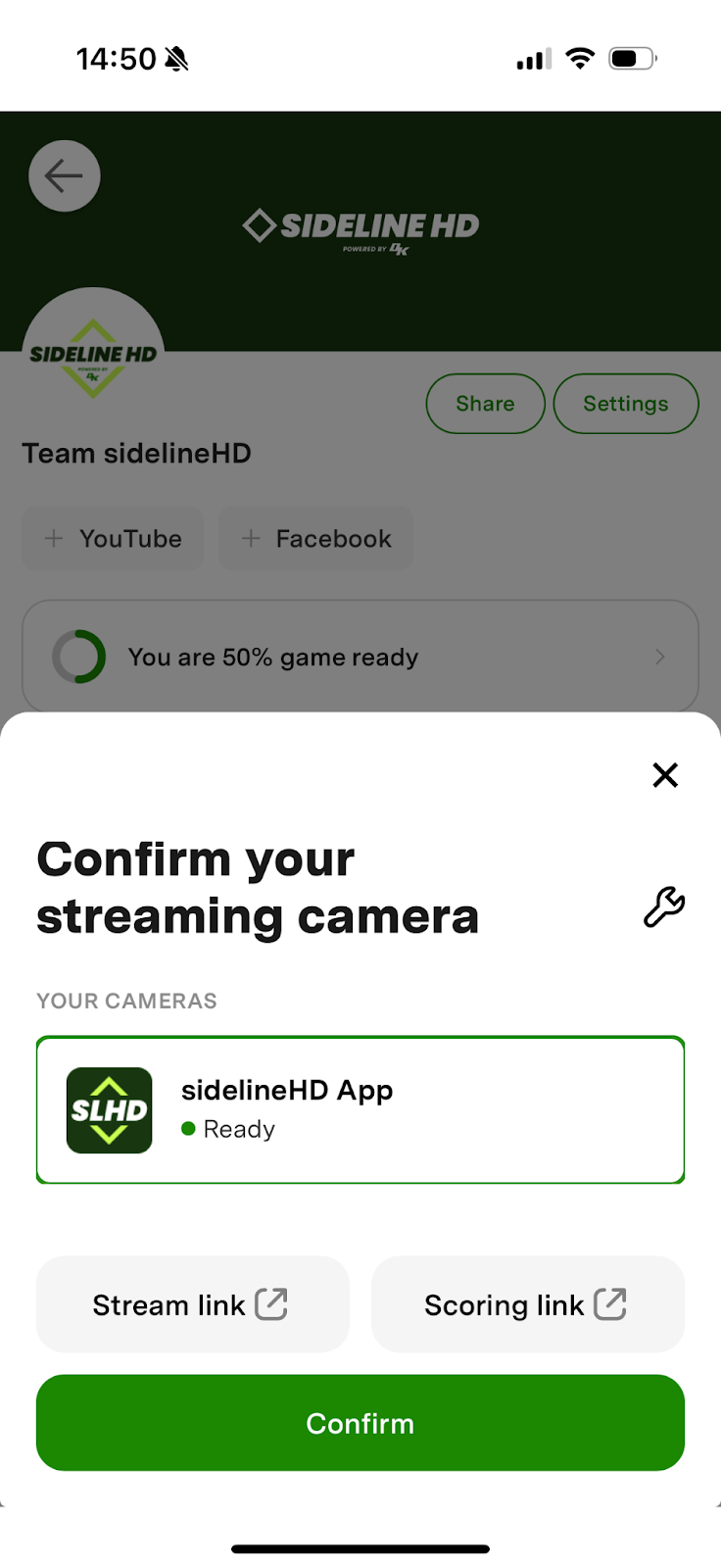
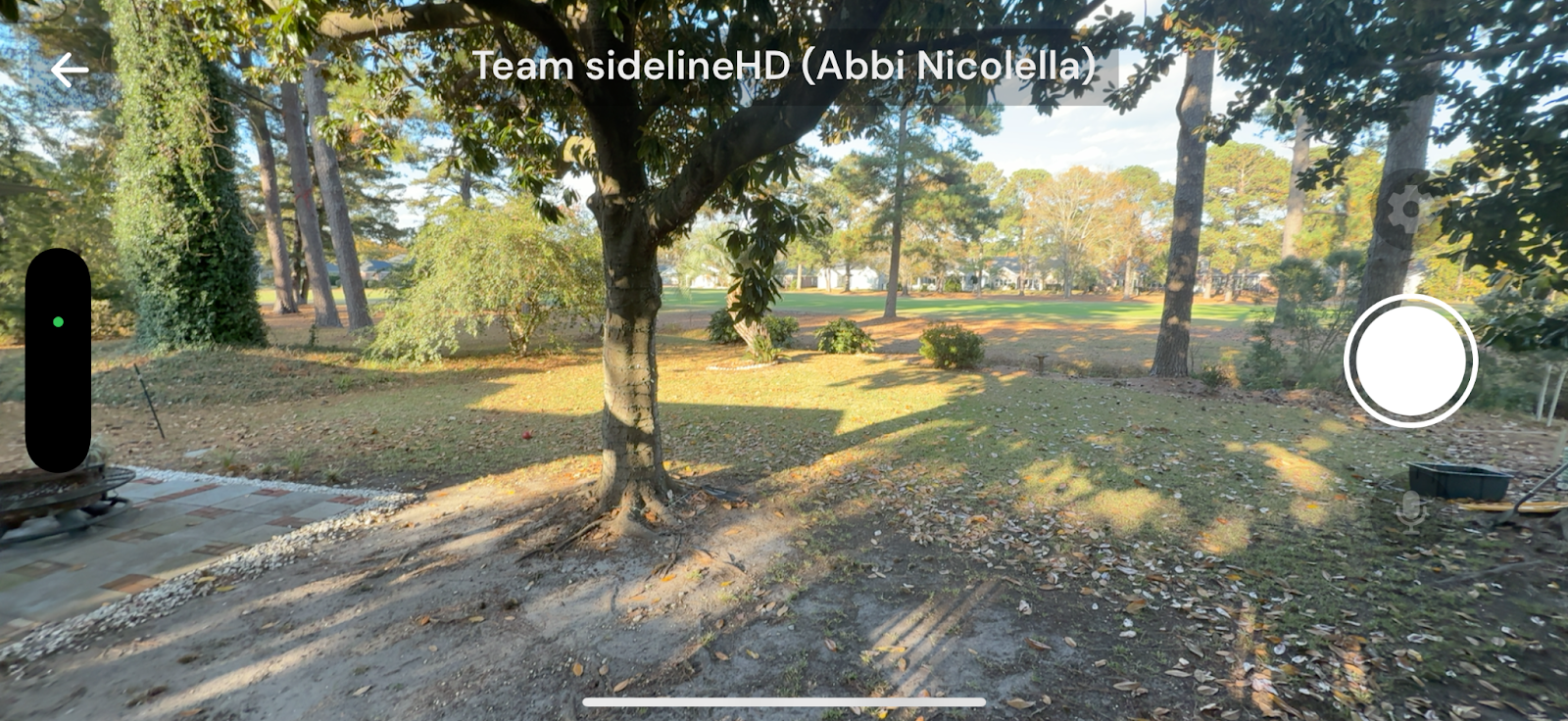
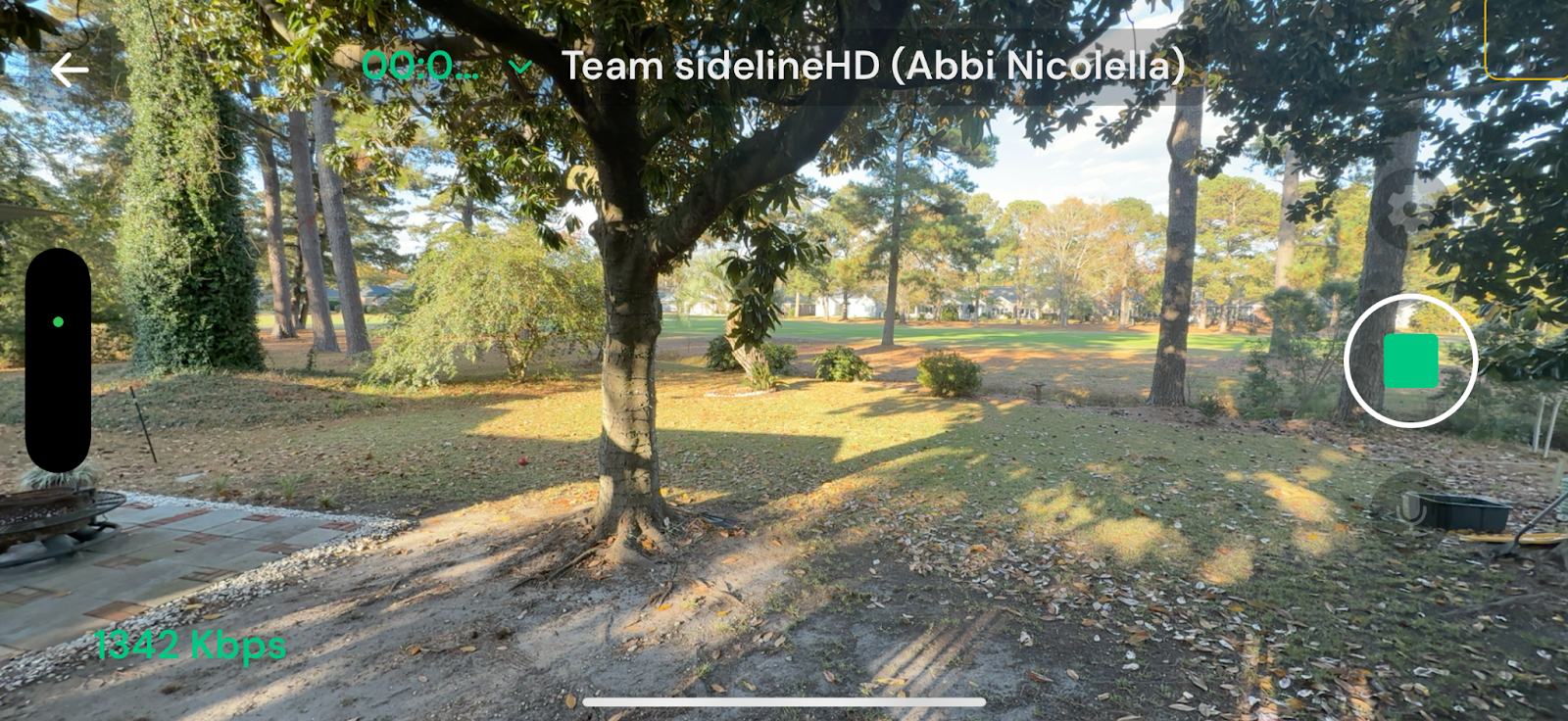
Note: If you have linked your account to a streaming destination like Facebook or YouTube, your test stream will go live on that platform, but your sidelineLIVE followers will not be informed you are live unless you share your link.
While streaming, confirm the basics:
Is it clear? Bright enough?
Can you hear?
If the stream holds for a full minute, you’re good.
If it drops, try:
Your test stream ends instantly and will not appear as a public broadcast.
Your test game will remain on your schedule, you can delete it anytime.
Running a home test stream is the fastest way to ensure your game-day experience is smooth, reliable, and stress-free. By setting up your team, loading your roster, adding a test game, and tapping “Go Live,” you’ll know exactly what to expect when the real game starts


.svg.png)